Browsing the Web in Japanese
Browsing Japanese web pages typically does not require any special measures. (If you want to enter Japanese text, to do a web search for example, you need to enable Japanese input as described on the first page of this site.) What is described below is mostly details and extras-- differences between browsers, Japanese-related plug-ins, troubleshooting, etc.
Browsers with Japanese Support
All of the following browsers can display Japanese and other Asian languages. (Most also have a Japanese version with Japanese menus, but that is not needed to display Japanese pages: the English versions will work just fine.)
- Safari, Apple's own browser, is designed to work with minimal setting or fiddling by the user. This may make it easier for beginners, but also less flexible than Firefox. It integrates well with Apple's Dictionary application and other dictionary programs through the Services menu--see the Dictionaries page of this site for details. Recent has support for ruby text.
- Firefox is an open-source browswer with the most flexible (and complex) options for detecting the language of a page and displaying it correctly. It has a range of plug-ins for adding furigana to web pages and for translating Japanese terms as you move your mouse over them. On the downside, it does not integrate as well with some the desktop dictionary software.
- Omniweb can display an encoding pull-down menu right in the tool bar, to make it easy to switch encodings. You can also specify different encoding and language preferences for pages you visit regularly and Omniweb will remember them.
- Google Chrome has an encoding sub menu accessible from the menu bar, and a feature that integrates with Google Translate to generate garbled translations of Japanese web pages. It also has a number of plug-ins available to add furigana or pop-up translations of individual words.
- Other Mac browsers like Opera and iCab also support Japanese.
Some browsers can incorporate plug-ins that extend their Japanese functionality, for example adding ruby or furigana to indicate the pronunciation of kanji on any web page, or displaying translations of unfamiliar words in pop up boxes. To see the full range of what is available you can go to the Firefox Add Ons Page or the Google Chrome Extensions Page and search for terms like "Japanese," "translate," "furigana,", or ruby. (Safari takes plug-ins too, but at this point there's not much available related to Japanese.)
And of course there are many web sites that provide help reading Japanese--from translating short snippets of text you enter to more elaborate services that can display Japanese web pages with pop-up hints that appear when you mouseover unfamiliar text. You can find a wide range of these services with a web search.
Setting the Browser's Encoding to Japanese
In order to display a Japanese page correctly, the browser needs to realize that it is a Japanese page and figure out which of several possible encodings are used to represent the Japanese characters. If your system supports Japanese, you should be able to read the sentence below:
日本では、いわゆるポストモダンという時代は、18世紀にもう既に終わりました。
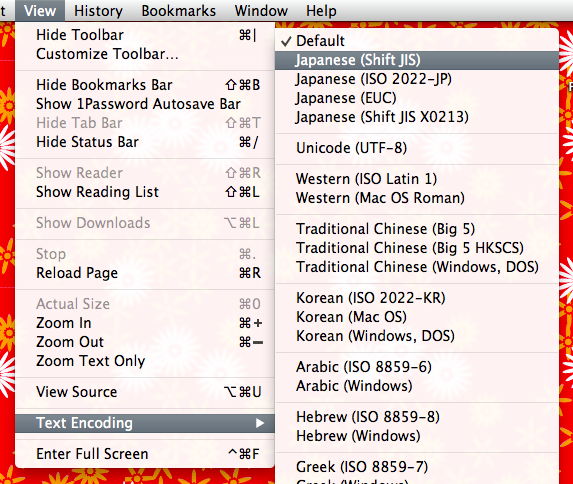
However, if the browser is confused, it will not display the Japanese correctly, and instead of Japanese characters you will get a series of nonsense characters. Whenever a page does not display correctly, tell the browser the page is in Japanese by selecting a Japanese encoding, using the following steps. Instructions are given for Safari, but the process is very similar with other browsers.

In Safari, select the "View" menu and move down to Text Encoding, then select different options until the page displays correctly. Japanese pages may be encoded either with the encodings labeled as Japanese or with unicode. (If you are curious about the difference, see the encodings page on this site.)
Note that when you go on to a new page in Safari, you will need to manually set the encoding back to "Default". (Firefox does this automatically.)
What exactly am I doing when I do this?
Japanese on the web is represented in several different formats or encodings. The browser needs to know which encoding a given page uses in order to display the Japanese correctly. The web page should include a specification in the html about what encoding was used. If this is not present, the browser may try to guess the encoding--some browsers have an "Auto-Detect" setting for this--or it may fall back on a default encoding set the browser preferences. If all this fails to display the page correctly, the user has to specify the encoding manually using the procedure above.
Some More Advanced Settings and Troubleshooting
If you find that you frequently have to tell the browser what encoding to use, you may want to set a Japanese encoding as the default. In recent versions of Safari, choose Preferences from the Safari menu, and then select the Advanced pane like the one shown below. (There are similar settings in the preferences of Firefox and Chrome, though they may be in slightly different places.) Choosing a Japanese encoding for English pages might make them display with little quirks, so choose an encoding that makes the majority of pages you view look right.
In Firefox and Chrome you can specify not only the default encoding, but also the fonts the browser uses to display pages. But it's rarely necessary to alter these font settings: typically the browser will automatically select a Japanse font when it encounters a Japanese encoding.
Adding Japanese to Your Own Web Pages
If you want to include Japanese on web pages you author, I have another page with some simple tips.